
Developing static HTML emails is a pain in the butt. For best results, you need to inline all of your styles at HTML attributes instead of using real CSS (externally or inline). You also typically find yourself being very repetitive with your markup if you have a bunch of static emails that share common elements.
MailMatic to the rescue.
MailMatic is a Ruby gem, that is really just a mashup of tools, that aims to ease the burden of creating and maintaining static HTML emails. It uses StaticMatic, Haml, Sass, and Compass to let you author your HTML emails with all of the facilities you enjoy while creating your dynamic site: templates, partials, helper functions, inline Ruby code, reuse of markup and styles, etc. It uses Premailer to convert the HTML/CSS generated from Haml/Sass into self-contained HTML files that inline all of their styles. Premailer even gives you warnings about styles that may not work nicely in certain email readers.
Armed with this, you can accelerate your ability to crank out static HTML emails, and lessen the burden of maintaining them.
To get started with MailMatic, check out its installation and usage instructions on github at: https://github.com/scottwb/mailmatic.
Showing posts with label tools. Show all posts
Showing posts with label tools. Show all posts
Monday, August 15, 2011

Wednesday, March 30, 2011
How to delete a remote git tag
I suppose this is probably taboo. You're not supposed to mess with tags once you've pushed them upstream. Still, there are times when it is necessary, and unfortunately `git push --tags` does not push the local removal of tags upstream. It always takes me forever to figure this out, so I figured I'd write it down. Maybe someone else will find it useful.
This will remove that tag from the remote repository. You can verify this by pulling from the remote again and seeing that it does not get pulled back down.
  git tag -d tag-to-delete
  git push origin :refs/tags/tag-to-delete
This will remove that tag from the remote repository. You can verify this by pulling from the remote again and seeing that it does not get pulled back down.
Thursday, January 27, 2011
YUI Compressor breaks CSS3 Media Query Syntax
If you use the CSS3 Media Query Syntax for something like this:
You will find that when you compress this with YUI Compressor (as is done when packaging your assets with Jammit), that the output breaks this syntax. YUI Compressor removes the whitespace between the "and" and the opening parenthesis, which does not conform to the CSS3 standard, and renders those styles unusable in most browsers (tested in Chrome and Safari, read about others hitting this in Firefox).
There's a YUI Compressor bug filed here that covers this: http://yuilibrary.com/projects/yuicompressor/ticket/2528053
I am invoking YUI Compressor via an asset-packager called Jammit. In a blog post yesterday, I noted some problems I encountered with Jammit not handling duplicate @charset directives generated by Sass/Compass, and outlined a quick hack workaround I used to deal with it.
Today, encountering this @media-related bug leads to an additional workaround I had to add to that. So, I figured I'd share a bit of my resulting rake task that combines all of these.
Here's the final rake task:
@media screen and (max-device-width: 480px) {
  body {font-size: 18px;}
}
You will find that when you compress this with YUI Compressor (as is done when packaging your assets with Jammit), that the output breaks this syntax. YUI Compressor removes the whitespace between the "and" and the opening parenthesis, which does not conform to the CSS3 standard, and renders those styles unusable in most browsers (tested in Chrome and Safari, read about others hitting this in Firefox).
There's a YUI Compressor bug filed here that covers this: http://yuilibrary.com/projects/yuicompressor/ticket/2528053
My Workaround
I am invoking YUI Compressor via an asset-packager called Jammit. In a blog post yesterday, I noted some problems I encountered with Jammit not handling duplicate @charset directives generated by Sass/Compass, and outlined a quick hack workaround I used to deal with it.
Today, encountering this @media-related bug leads to an additional workaround I had to add to that. So, I figured I'd share a bit of my resulting rake task that combines all of these.
- Use compass to compile my Sass to CSS without compressing it (this is important)
- Use sed to remove all @charset directives (dangerous, but I know I don't need them in this case). Take care to make sure the differences in how the -i parameter to sed works between OS X and Linux.
- Use jammit to package up everything.
- For each permutation (e.g.: normal, datauri) CSS package jammit generated, use sed to add the missing space back in to offending @media directives.
- For each of those CSS files we sed-edited, re-gzip them. (Jammit made gzipped versions originally, but we have to regenerate them since we changed the contents.)
Here's the final rake task:
Tuesday, January 25, 2011
Using tcpdump to sniff HTTP traffic from a specific host
This is mostly just a reminder to myself about my preferred parameters to tcpdump on linux, so that I don't have to keep reading the man page.
tcpdump -c 20 -s 0 -i eth1 -A host 192.168.1.1 and tcp port http
The parameter breakdown:
- -c 20: Exit after capturing 20 packets.
- -s 0: Don't limit the amount of payload data that is printed out. Print it all.
- -i eth1: Capture packets on interface eth1
- -A: Print packets in ASCII.
- host 192.168.1.1: Only capture packets coming to or from 192.168.1.1.
- and tcp port http: Only capture HTTP packets.
Friday, December 10, 2010
Hate the emacs tilde backup files?
I do...but for decades I have been afraid to turn them off in case I ever needed the backup file, even though I have never used them once. Finally I snapped and tried to figure out how to turn them off. While looking this up, I came across a better option: store them all in a single hidden directory, instead of littering the whole filesystem with them. There is a nice package called "backup-dir" that even provides the ability to keep multiple versions of your backup files, while keeping them all out of sight and out of mind, and automatically cleaning up old versions. Learn more at:
To see how I pulled in the backup-dir package and set it up in my init.el file, see the change to my dotfiles project.
Wednesday, December 8, 2010
Creating/Deleting local and remote branches with git
In the course of my git-based workflow, more often than not, I use branches like this:
- Create a new local branch starting from the HEAD of my current working branch.
- Immediately push it upstream to the remote origin so that it exists in both places.
- Set the local branch to track the remote branch.
- Commit/push/repeat
- Merge the branch back into master (or wherever it started from)
- Delete the local branch.
- Push to delete the remote branch.
- git branch-create feature_branch
- Commit/push/repeat.
- Merge branch back into parent branch.
- git branch-delete feature_branch
To use these scripts via the above commands, download the scripts above and place them somewhere in your path. I even created short aliases for them like so:
Thursday, July 1, 2010
Hudson CI behind an Nginx Reverse Proxy with SSL
Here is a quick example nginx configuration to reverse proxy on an HTTPS virtual host to a Hudson CI server running on localhost. When I first tried to do this, the management page displays an error about the configuration being wrong. There are instructions for Running Hudson behind Apache that were helpful, and this email thread that seems to suggest terminating SSL at Hudson, not at the reverse proxy. Well, after a bit of tinkering, I worked out this configuration for nginx that worked out great:
Saturday, April 17, 2010
GitHub Redemption
Moments after posting that last blog post about full directory compare of a git branch, I found out GitHub supports this already!
My post didn't explicitly call out GitHub, because I really think of this mostly as a local working tree issue for me. But, as I went to tweet about it, I realized I would probably be happy enough if GitHub supported something like this, so I called them out in the tweet...and they answered!
Many thanks to Tom Preston-Werner (@mojombo) for correcting me, and pointing out probably the one link on GitHub I have never clicked: The "Branch List" sub-tab:
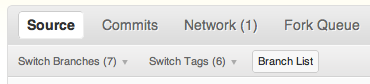
I guess I just assumed that it was going to be just a list of all the branches. You know, like `git branch -a`. So I never clicked on it. Stupid. It turns out it's quite useful.

The stats are pretty cool, but the "Compare" button is what I've been looking for. Clicking that takes you to a page that shows the full directory diff between the head of the branch relative to the "base branch", which in this case is "master". Better yet, it gives you three optio
ns on how to view this diff:

You can see the diffs as a series of commits, the overall file changes (the one I was pining for), or the set of commit comments. This is great. Other than the fact that it doesn't cover
un-pushed commits and uncommitted changes in my local clone, and the fact that I really prefer side-by-side diff format ala SmartGit or Trac (but that's a story for another day), this is pretty much exactly what I wanted -- and if I had known about this 8 hours ago, I probably wouldn't have built the stuff I did.
But it gets even better. These buttons that show the two branches being compared is clickable.

Clicking one of these buttons bring up a modal that allows you to specify a specific commit. This lets you do a full tree diff between any two commits. Awesome!

In the end, I still think my solution is useful for the case where you want to deal with branches/commits that have not been pushed to GitHub, or you are working in a repository that is not on GitHub. (But who in their right mind does that, right?)
But, as soon as SmartGit covers this territory, I see no need for my solution...unless you don't use SmartGit (even though you should).
See a visual diff of work done in a git branch with git-branch-diff
I have developed a Ruby script called git-branch-diff that allows you to use a graphical directory compare tool to compare the working tree of a branch with the state of the tree from which it was originally branched. For download, setup, and usage instructons, see:
Background - My Workflow
I don't know about you, but a big part of my development workflow involves constantly diff'ing the changes I have made and am in the progress of making, as a way to constantly keep in touch with the state of what I am working on, and even as a reminder of what I am supposed to be doing. I like to write notes in contextual comments that I never intend to push out to the master branch, to help remind me of TODOs that need to be done before calling a feature sprint done.
In my world of constant multi-tasking and task-switching, I frequently have numerous topic branches in progress on the same repository. I like to end the day with no uncommitted changes, and even no un-pushed changes (i.e.: let github handle backups). So, after a task-switch, it's an integral part of my workflow to be able to see a good diff of the cumulative work I've done in a branch that hasn't been merged back in the master yet. This is usually pretty easy when we're talking about uncommitted changes. But, when I want to see the set of changes in that branch that would be merged if I were to do it now, things get a little more difficult.
The Problem
Git is a powerful tool with a crazy number of features. I probably only know 1% of them...and everywhere I searched, I could not find a way to do a visual directory compare of what has changed in my branch. Perhaps I've been spoiled by a great line of tools from syntevo GmbH that I've been using for years. I started with SmartCVS, then moved on to SmartSVN, and now to SmartGit. I am, always have been, and always will be a command-line guy. I'll admit that most of my cvs/svn/git usage happens from the keyboard. But I have come to rely on these GUI tools as an excellent addition to the command-line when it comes to visualizing my working tree status, performing directory and file diffs, editing line-by-line diffs, 3-way-merge conflict resolution, and easy selective add/commit/revert operations. Over the years I have come to rely on them as a key part of my routine - especially the directory diff view of all the changes in my working tree.
SmartGit has that capability for comparing the index, HEAD, and working tree, but not (yet) for arbitrary commits...or what I want most: comparing the HEAD of a topic-branch to the commit from which it was branched. The folks at syntevo assure me this will be included in a forthcoming point release, but what am I to do in the meantime?
Attempted Solution
I can get the data I want with a command like:
git checkout my_topic_branchgit diff `git merge-base master HEAD`
That shows me exactly the diffs I am interested in, but in a primitive textual (albeit colorized) context diff that I have to navigate with less.
Well, the folks at syntevo have another awesome tool called SmartSynchronize. This is their directory/file diff/sync/merge tool from their source control products as a standalone diff tool. So...why not just pump this diff data into that? To do that, you need to edit your ~/.gitconfig file to specify the custom difftool. For example, on Mac OS X, these additions look like:
The problem with this is that git invokes the difftool once per file being diff'ed. That's no good. I don't want to open my external visual diff tool 100 times. I want to open it once with a list of all the files added/modified/removed and be able to click on them individually to see their diffs, and ideally even be able to edit, synchronize, revert, etc. SmartSynchronize gives me all this...but git doesn't give it two directories to compare, it gives it two files to compare, one file at a time.
The Solution
So, I developed a tool called git-branch-diff that does all this for me. It works by finding the names and statuses of the differing files and constructing two temporary directories that match the original directory structure with the old and new versions, respectively. Then it passes those directories to SmartSynchronize, and voila! I've got a beautiful directory compare that represents the state of my topic-branch:

It only takes a few seconds to download and setup, and using it is as simple as:
git checkout my_topic_branchgit branch-diff
This script would be pretty easy to modify to handle comparing arbitrary commits...but once syntevo adds this to SmartGit, I won't need this anymore anyway! But, for those of you that won't be using SmartGit, this script can still be useful to you, and you can hook it up to whatever directory compare tool you want (e.g.: opendiff or BeyondCompare).
If you think this tool would be a valuable addition to your workflow, you can get the code and instructions for this tool at:
It can easily plug in any directory compare tool, but I highly recommend you give SmartSynchronize a spin with its 30-day free trial.
NOTE: One current limitation in this script is that after making and saving modifications in SmartSynchronize, this script does not apply those back to your working tree. I'll probably implement that soon, so if you're interested, stay tuned...
Subscribe to:
Posts (Atom)